
As of August 2026, SmartAdv uses Tipalti to handle the vast majority of payments being made to its affiliates. Tipalti is fully integrated with Everflow, so you will have full control from within your account's billing settings as usual. Tipalti will allow you to update your billing info any time without needing to inform your account manager, and new direct deposit integrations are completed MUCH faster than they used to be (< 1 day). The following payment methods are currently supported by Tipalti:
- Direct Deposit/ACH
- Wire Transfer
- PayPal
- Local Transfer (non-US accounts)
NEW!
NOTE for Non-US Residents: If you want to use Direct Deposit to receive payments be sure to follow these instructions to enable Direct Deposit an option
NOTE: If you are not a US resident, but you want to use Direct Deposit to receive payments, be sure to follow these instructions to enable Direct Deposit an option
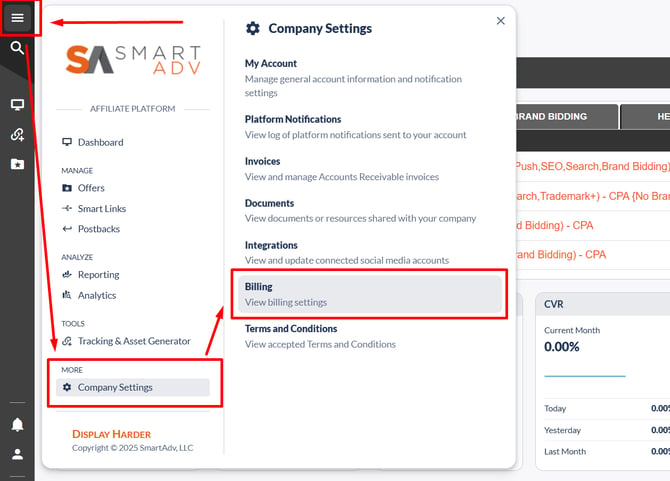
To begin, expand the side menu, click "Company Settings", and then click "Billing"
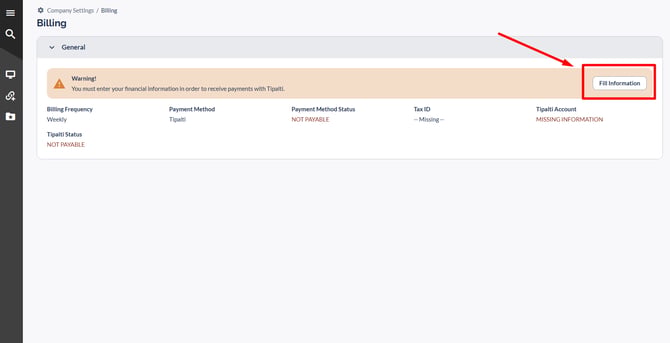
Once you are in the billing section, you will see that your payment method is already set to "Tipalti" and there will be a prompt with a button that says "Fill information"—click that button:
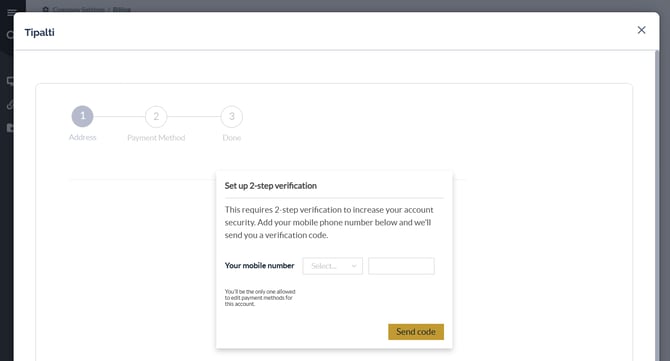
The first time you enter the Tipalti interface, you will need to set up 2FA (2 Factor Authentication) using your mobile phone # to be able to continue:
Once that's done, there are three quick steps to complete your registration:
Step 1: Address
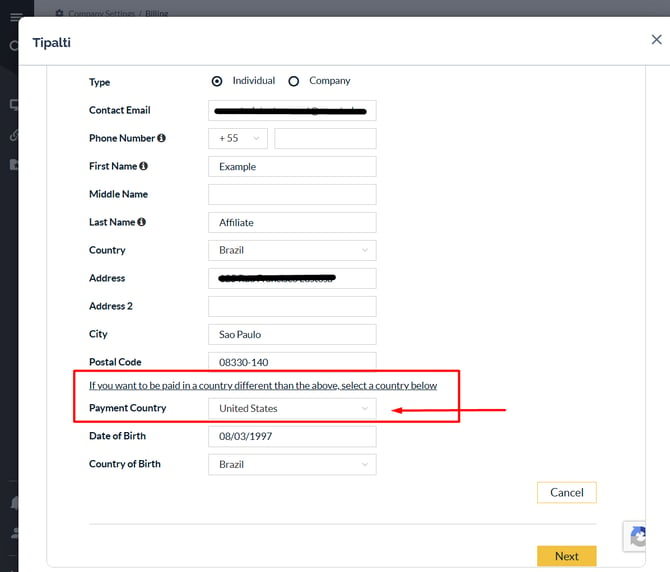
Here you will need to specify whether you are receiving payments as an Individual or as a Company, followed by the relevant contact/address info:
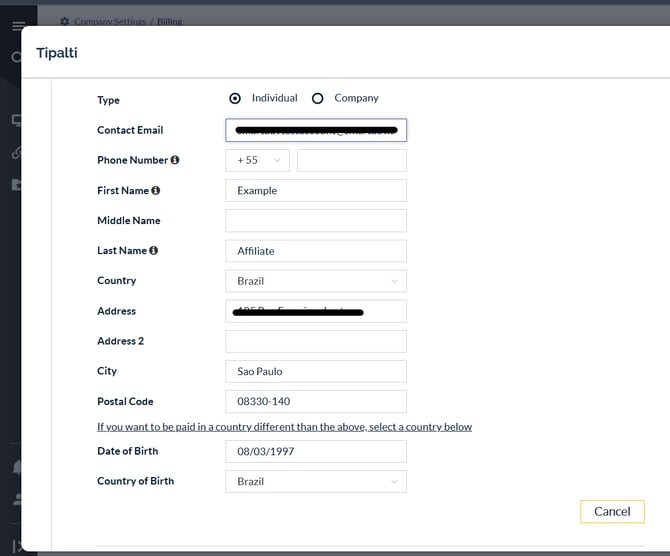
IMPORTANT: For non-US residents that want to be paid via Direct Deposit using a US bank account, look towards the bottom of the "Address" page and click the link that says, "If you want to be paid in a country different than the above, select a country below", to reveal a dropdown field where you need to select "United States". This will unlock the "Direct Deposit/ACH" option for you on the next step.
If you do NOT want to be paid via direct deposit, or if you are a resident of the US, leave these settings alone.
Step 2: Payment Method
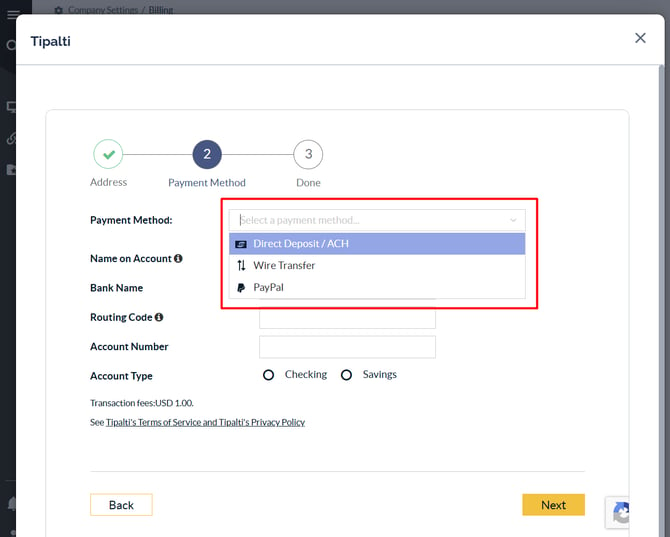
Tipalti supports the following payment methods:
1. Direct Deposit/ACH
This is for US-based bank accounts only; however, there are third-party services that can provide non-US citizens/residents with access to a US bank account to receive payments via Direct Deposit. (Payoneer and Wise are two of the more popular options that provide this service*)
If you are not a US resident, but you want to use Direct Deposit to receive payments, be sure to follow these instructions to enable Direct Deposit an option
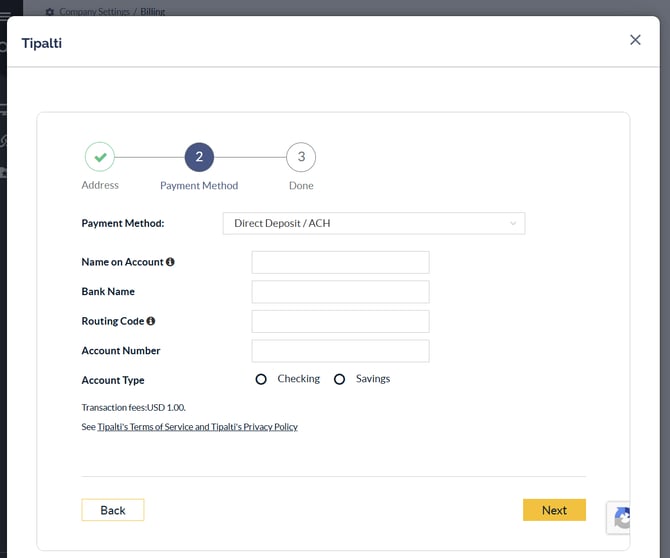
Required Fields:
Name on Account - This is the beneficiary of the bank account. In this field you will put either your full legal name or your company name, depending on how you configured your account.
Bank Name - This refers specifically to the US-based bank in which the account is located (if you are using a service like Payoneer to receive payments via Direct Deposit do not put "Payoneer" here! Put the name of the bank they provided with your account details)
Routing Code - If multiple routing numbers are provided, you want to use the ACH Routing number, NOT the wire routing number or swift code
Account Type - Select whether the account is a checking account or a savings account
2. Wire Transfer
This option is for immediately transferring funds directly into the recipient's bank account. It is most often used for international bank transfers and is best reserved for larger payments, as both the sending and receiving banks tend to charge flat rate fees + a currency conversion fee** (if applicable)
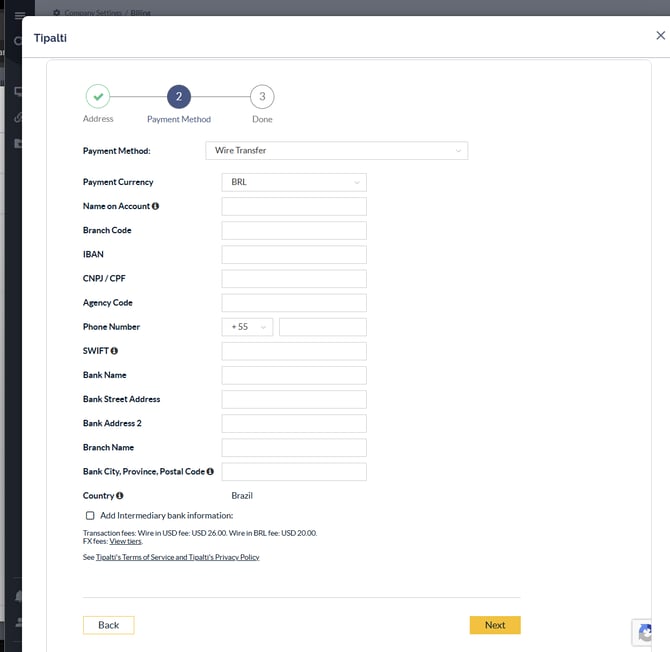
The fields available will vary depending on the country in which the bank is located.
** Please note that if you choose to be paid in a currency other than USD, Tipalti charges a currency conversion fee (rates can be found by clicking the "View Tiers" link on the Wire Transfer setup screen)
If you would prefer to let your bank handle the currency conversion, just select "USD" from the "Payment Currency" dropdown. Tipalti does not charge any currency conversion fees if you choose to be paid in USD.
3. PayPal
If you have a PayPal account, this is a great option for smaller payments that you need instantly. Just select the correct currency and enter the email address and the first and last name associated with your PayPal account: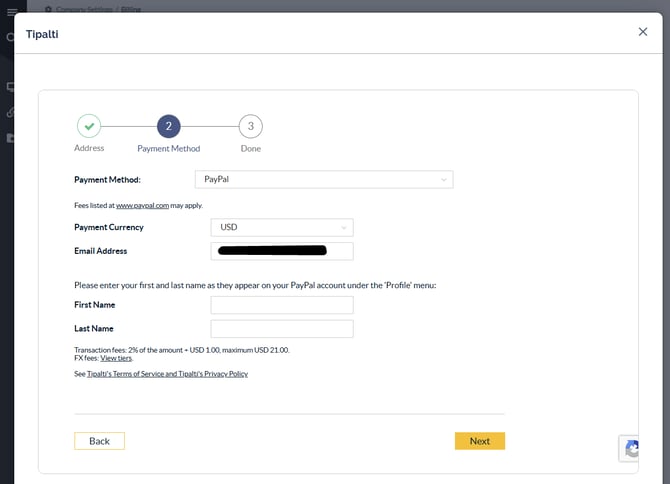
Note: Thee First and Last name entered here must be an exact match to what is in your PayPal account
4. Local Bank Transfer NEW!
This is a new payment option that was not previously supported for non-US residents, and it allows direct transfer to your local bank account at a reduced cost compared to a wire transfer.
NOTE: Tipalti charges $7 for local transfer transactions + a currency conversion fee (if you are not being paid in USD).
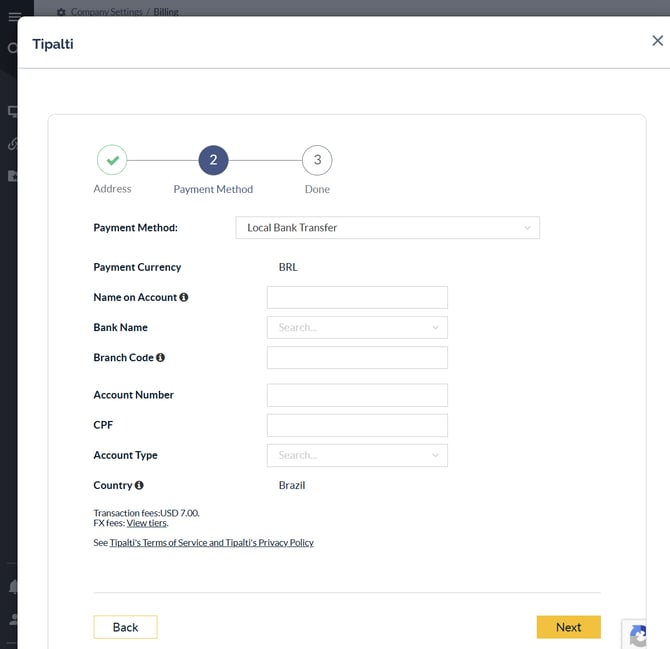
Note: Payment currency and the required fields will vary depending on your country of residence. Be sure to review Tipalti's "FX Fees" for the cost of converting your payment from USD to your local currency
IMPORTANT! Please make sure the payment information you provide is correct to avoid incurring failed transaction fees from Tipalti
Step 3. Tax Forms
Before we can release any payments, we need to have a tax form on file. Depending on where you live and whether you are working with us as an individual or as a company, there are three main options:
- W-8BEN - This is for non-US affiliates that said they want to be paid as an "Individual" in step 1.
- W-8BEN-E - This is for non-US affiliates that said they want to be paid as a "company" in step 1.
- W9 - This is for all US affiliates, whether they are working with us as an individual or as a company.
Note: We use Dropbox Sign for collecting W8/W9 forms. You can fill one out by either navigating to the
HELP CENTERtab on your dashboard, scrolling down, and then clicking one of the buttons (depending on which form is appropriate for you)...
...or you can ask your account manager to send you a link.
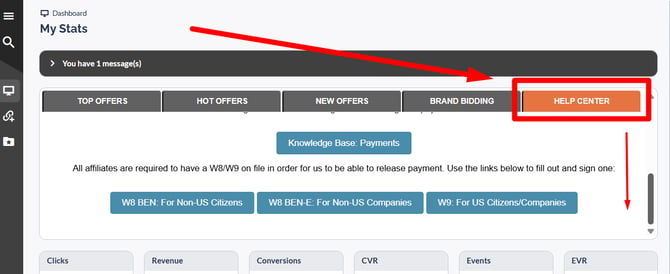
While we are required to have one of these tax forms on file, it will not impact how much we pay you—it is strictly for our own records.
That's it—You're Done!
You are all set to receive payments at SmartAdv!
* SmartAdv is not affiliated with Payoneer or Wise—these companies were mentioned solely as examples of entities that may provide this kind of service